![Dye & Durham Logo.png]](https://solutions.dyedurham.ca/hs-fs/hubfs/DD%20Direct%20V2/Dye%20%26%20Durham%20Logo.png?height=40&name=Dye%20%26%20Durham%20Logo.png)
In this article we are going to cover the steps on how to export the Alberta Law Society trust audit report:
- Alberta Law Society Trust Audit Report
- Export Unity Accounting Report for Download
- Report Details
- PwC Connect Tool Upload
Alberta Law Society Trust Audit Report
The Alberta Law Society requires that all Alberta Law Firms download their data files to their computer and then upload the files to the Law Society. The download is accomplished in Unity Accounting’s report function. The upload is accomplished using PricewaterhouseCoopers (PwC) Connect Tool.
Export Unity Accounting Report for Download
To export the Unity Accounting reports for download the following steps are required.
- In the main menu ribbon select Reports – Other – Law Society Audit Export
a. 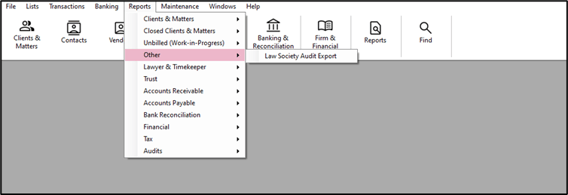
b. 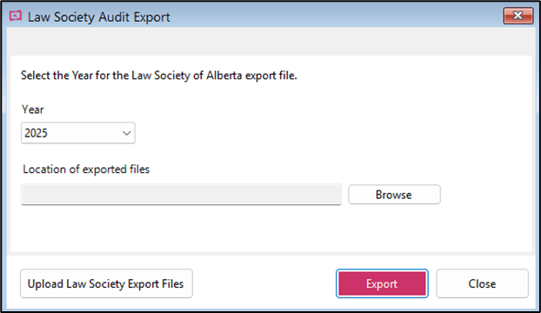
2. Select the year for the Law Society of Alberta export file.
3. Click on Browse to choose the file/folder where the export will be saved on computer. We recommend that you have a documents folder specific for trust audits to make them simple to find.
4. Click the “Export” button
5. When the reports have been successfully created you will see a confirmation message.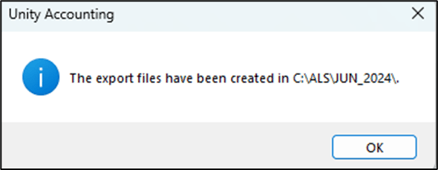
-
- This dialogue box advises where the files are saved, as per your directions in the previous steps.
- It is good practice to write down the address of the file to make it easy to find when you complete your upload to PcW.
7. Click on “Upload Law Society Export Files” to open link to PwC Login. Details are available in the following PwC Connect Tool Upload section.
Report Details
If you review the export files that have been created and saved to your file, you will see five reports in a csv format.
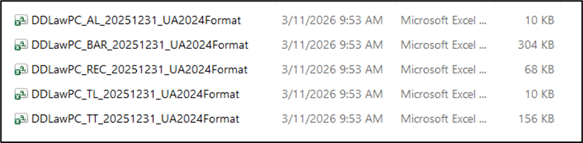
- The information included in the exported reports are defined as follows: (example: for the period ending December 2021)
-
- DD Alberta_ AL - Accounts Receivable Ledger
- Includes all data before 1 year prior to Jan 2021 as it is a balance forward report and prepares opening balances.
- DD Alberta_BAR - Billing and Receipts Report
- Includes all bills and receipts posted Jan 2021 to Dec 2021
- DD Alberta_REC - Bank Journal
- Includes all bank transactions, cheques, and deposits etc., from Jan 2021 to Dec 2021
- DD Alberta_TL - Trust Listing Report
- Includes all data before 1 year prior to Jan 2021 as it is a balance forward report and prepares opening balances.
- DD Alberta_TT - Trust Transfer & Client Trust Transfer Reports
- Includes all transfers that occurred between Jan 2021 to Dec 2021
- DD Alberta_ AL - Accounts Receivable Ledger
PwC Connect Tool Upload
All firms must use the PwC Connect Tool to upload the data to the Alberta Law Society. An email is sent to all Responsible Lawyers with instructions to login and use the Connect Tool. There is also information on the Law Society website www.lawsociety.ab.ca.
To complete the upload the following steps are required
- Log into the Connect site by clicking on the URL listed at the bottom of the email that you will receive from them
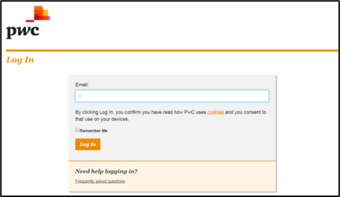
- You will now be redirected to the PwC site. The login window will appear, and you will be prompted to enter your email address.
- Click on “Log in”
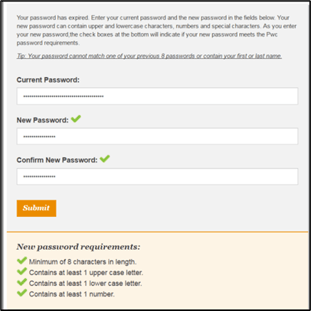
- You will be directed to the Clients and Visitors page. Enter the temporary password listed in the email you first received from PwC. If you have logged in previously, you will need to use the password that you have created.
- If this is your first visit to PwC you will be prompted to change your password upon successful login.
- If you have issues with your password, logging in, or any other difficulties please email safety@lawsociety.ab.ca
- For complete directions and support with respect to navigating the PcW website you can view the full PwC Connect Tool Upload document at https://documents.lawsociety.ab.ca/wp-content/uploads/2021/01/07160937/Trust-Safety_PwC-Connect_User-Guide.pdf
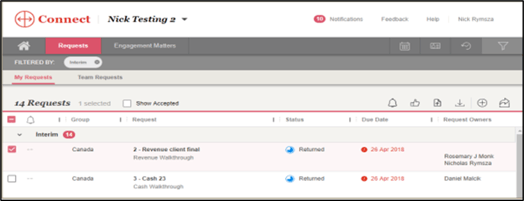
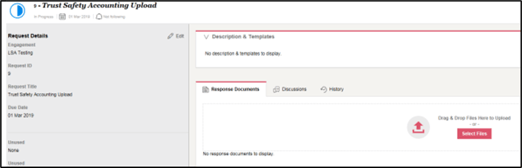
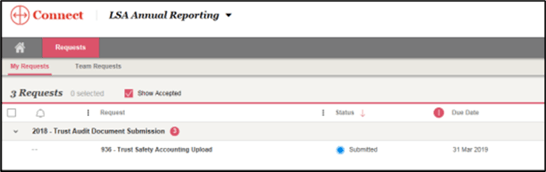
- Once you have successfully logged in you will be directed to the Requests page. The request page lists your annual filing requirement and provides a record to respond to. You will be able to submit your filing by accessing the request that is assigned to you.
- To view the request, click on the request title to access the details of the request. Once you are in the request page, you will be able to see the details (i.e. Due Date)
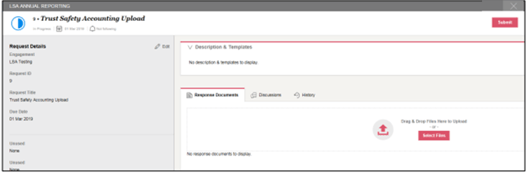
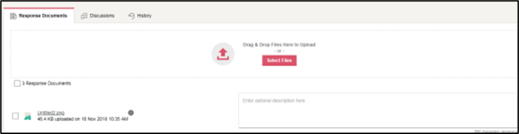
- To submit your filing to Trust Safety, you will need to click on the “Response Documents” tab in the request
- Click on “Select Files’
- Locate the files on your computer and click open at the bottom of the dialog box
- The files should be displayed in the request
- You can confirm that your request was submitted successfully by looking at the status of the request on the main page.
- You have now successfully exported your Trust Audit report from Unity Accounting and downloaded it to PwC as per the Alberta Law Society trust requirements. Congratulations.