![Dye & Durham Logo.png]](https://solutions.dyedurham.ca/hs-fs/hubfs/DD%20Direct%20V2/Dye%20%26%20Durham%20Logo.png?height=40&name=Dye%20%26%20Durham%20Logo.png)
To edit a bill:
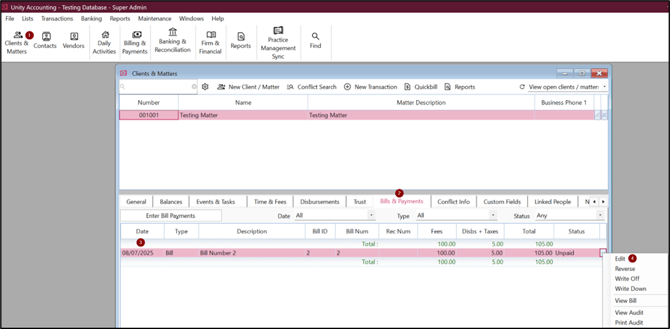
- Click on Clients & Matters and select the client.
- Click on Bills & Payments tab and select the bill to be edited.
- Ensure that the status of the bill is unpaid. Bills can be edited when they have a status of Unpaid, Partially Paid or Paid.
- Right click on the bill > Edit or click on the drop down arrow.
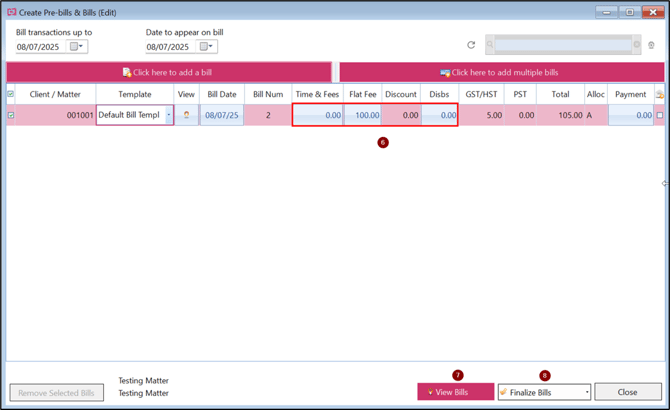
- The Create Pre Bills and Bills window will open.
- Click the dropdown under Template to select the correct template to be used. The user can edit a client, time and fees, flat fees, disbursements, taxes or date of the bill.
- Click on View Bill to view the changes.
- Click on Finalize Bill and select an appropriate option to post the bill.
Tips:
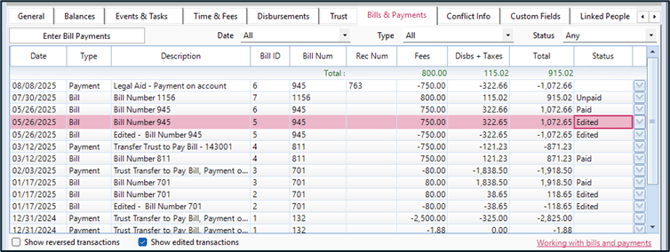
- Once a bill has been edited, the original bill will have a status of Edited with an audit trail for transparency. Review the Bills & Payments tab and ensure that the option to Show edited transactions is selected to view the edit transaction.
- There is a Global Setting option that allows you to restrict editing of paid and unpaid bills by specifying a cutoff date. This option is located on the Global Settings > Billing tab.
Note:
- Once a bill has been edited, the Bill Number will remain the same but the Bill ID is updated.
- When editing paid bills, keep in mind the changes made will impact previous financial reports. Be aware of closed periods.
- If a Paid bill is edited so that the value is greater than the new status of the bill will be Partially paid.
- If a Paid bill is edited so that the value is less than the new status of the bill will be Overpaid. See the Knowledge Base Article How to Refund an Overpaid Bill.