![Dye & Durham Logo.png]](https://solutions.dyedurham.ca/hs-fs/hubfs/DD%20Direct%20V2/Dye%20%26%20Durham%20Logo.png?height=40&name=Dye%20%26%20Durham%20Logo.png)
The Refund feature is used to refund overpayment that has been applied to a client or matter or bill payment.
Option 1 - Process a refund for overpayment:
To process a refund for an overpayment:
- The status of a bill for the client/matter must be Overpaid.
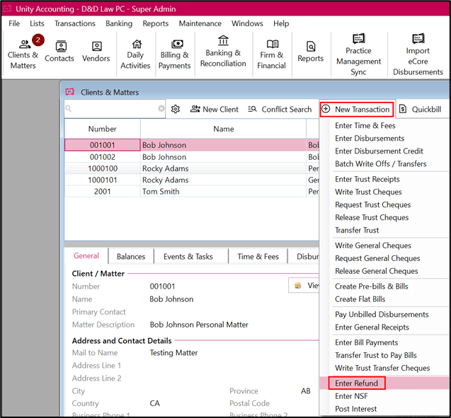
- Click on Clients & Matters > select New Transaction > Enter Refunds.
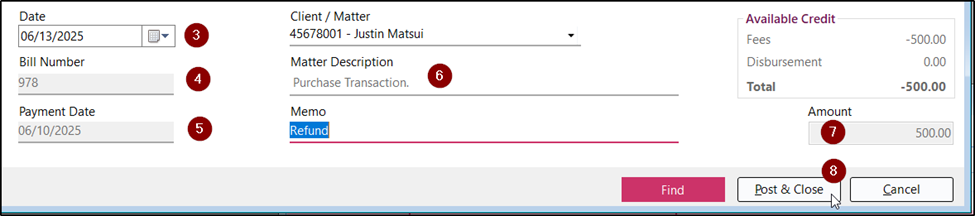
- Select the client/matter where the refund needs to be posted.
- Select or enter the date of refund.
- The bill number, payment date and the matter description will show up automatically.
- Enter the description in the memo field.
- The total amount of refund will show up automatically.
- Click on Post and Close.
- The refunded amount will be displayed as a credit disbursements tab of that client.
- Write general cheque to the client for refund amount. The code on the cheque must be 999 to clear against the refund credit disbursement.
Tip:
- In case there are two bills from the same client which are overpaid, system will pick up the first overpaid bill for the refund first and then the next refund needs to be done by following the steps above.
Option 2 - Process a Refund for a Bill Payment
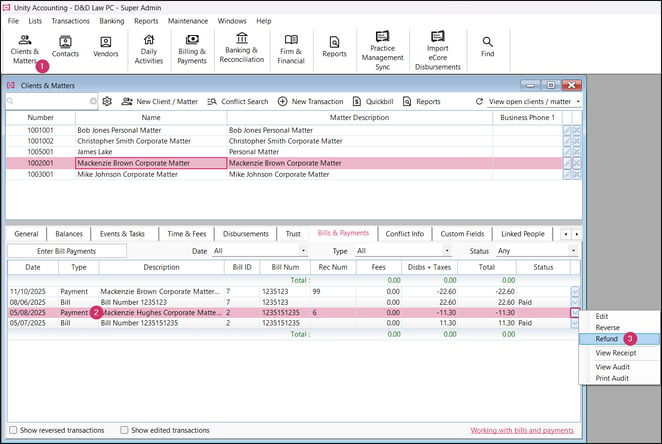
- Click on Clients & Matters and select client.
- Click on the payment to be refunded.
- Right click and select refund or click on the dropdown and select Refund.
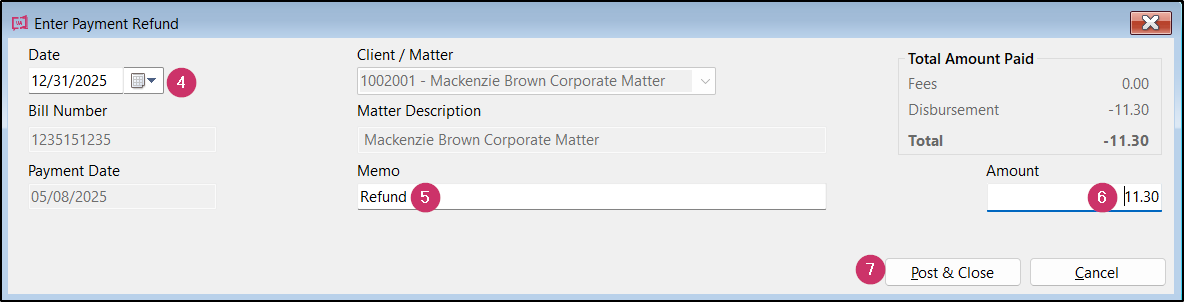
- Verify the date of the refund.
- Tab to the Memo field and type Refund. Add more text if required.
- Tab to the Amount field, enter the amount to be refunded. Ensure that the amount is not greater than the total payment received as a warning message will appear.
- Click Post and Close.
- The refunded amount will be displayed as a credit in the disbursements tab of that client.
- Write a general cheque to the client for the refund amount. The code on the cheque must be 999 to clear against the refund credit disbursement.