![Dye & Durham Logo.png]](https://solutions.dyedurham.ca/hs-fs/hubfs/DD%20Direct%20V2/Dye%20%26%20Durham%20Logo.png?height=40&name=Dye%20%26%20Durham%20Logo.png)
Client bill payment feature is used to show the payments received from the clients for the services rendered.
Steps:
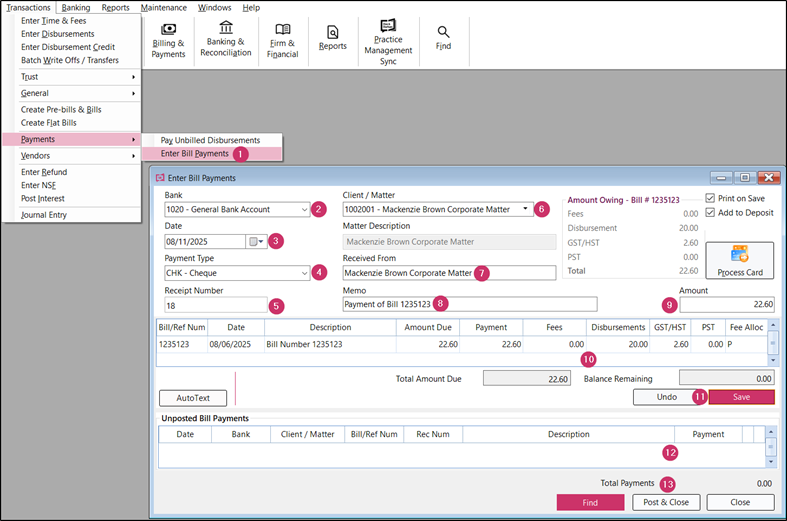
- Click on Clients & Matters and select New Transaction > Enter Bill Payments.
- Select the bank where account payments will be deposited to.
- Select or enter the transaction date.
- Select the payment type. If the payment type is set to add the transaction to the deposit, the Add to Deposit checkbox will be checked.
- Enter the receipt number. If automatic receipt numbering enabled in Global Settings press enter to automatically enter a receipt number.
- Select the client/matter number. Once the client/matter number has been entered, all of the outstanding invoices and interest transactions will be displayed. The amount owing bill# that displays is the oldest outstanding invoice. The total amount due shows the total value of all the outstanding accounts receivable.
- Enter Received From or leave it as is to default to the client's name.
- Enter a memo or description for the transaction.
- Enter the total amount of the payment.
- To change the distribution, enter the appropriate amounts in the distribution fields for the payment. Once the balance remaining equals to zero then the payment amount has been fully distributed to the outstanding bills or interest.
- Click on Save.
- Repeat the above steps to enter multiple transactions as long as they are in the same month.
- When finished entering transaction details, click Post and Close.
Tips:
- Payment types can be configured under Lists > Payment Types.
- When entering an amount, ensure it matches the total of an existing bill and it will automatically fill in that distribution line.
- To print a copy of the receipt, select Print on Save before saving the transaction.
- The fee allocation on a receipt or payment in the Fee Allocation column can be adjusted.
- If the fee allocation is changed, once finished posting the payments, it is advised to edit the fee allocation on the bill. For details, go to the How to Edit a Bill article.
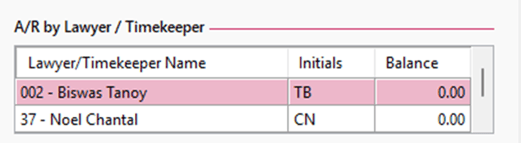
- If the fee allocation is not the same in both the bill and the bill payment a variance will display in the balance ledger for the A/R by Lawyer/Timekeeper causing incorrect reporting details.