![Dye & Durham Logo.png]](https://solutions.dyedurham.ca/hs-fs/hubfs/DD%20Direct%20V2/Dye%20%26%20Durham%20Logo.png?height=40&name=Dye%20%26%20Durham%20Logo.png)
A transaction audit is a report of the transactions that have entered. Each audit has two sections. The first section shows the transactions as they were entered on the clients/matter or general ledger accounts, and the second shows the automatic journal entry that updated the general ledger. (Journal entry audits have a general ledger section only, because journal entries do not affect clients/matters.)
Each time transactions are entered, a transactions audit is created, and an audit number is assigned to the transaction batch. A transaction “batch” refers to the single transaction or group of transactions that have been entered and saved, and that are posted when Post is clicked. For example, if ten disbursement transactions are entered and then click Post, they comprise one transaction batch and each transaction is assigned the same audit number.
When the user first begins using the software the audit number series begins at 1. Each time transactions are entered, the audit number is incremented so that each audit has a unique number by which it can be identified.
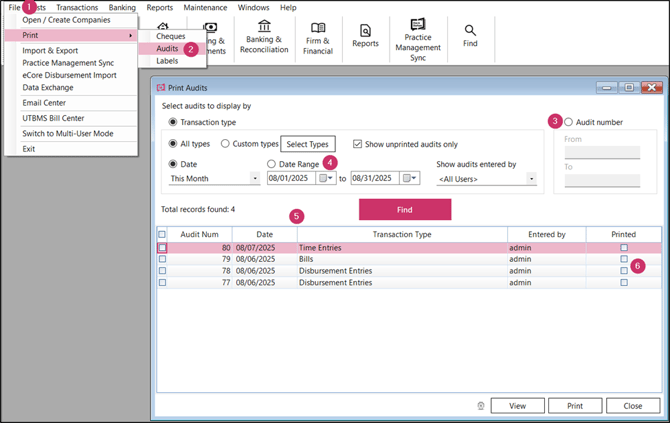
To print transaction audits:
- Click on the File menu on the top left-hand side of the window.
- Click on Print and select Audit.
- If there is an audit number, click on audit number on the right side of the screen, enter the audit number and click on Find.
- Select the date range to search for the transactions posted in a particular date and click on Find.
- Audits may be sorted by date, audit number, transaction type, entered by.
- Select the audit numbers to be printed and click on Print.
Tip:
- Only ten audits at a time may be printed