![Dye & Durham Logo.png]](https://solutions.dyedurham.ca/hs-fs/hubfs/DD%20Direct%20V2/Dye%20%26%20Durham%20Logo.png?height=40&name=Dye%20%26%20Durham%20Logo.png)
This article covers how to run a Transaction Listing by Account report. This report produces a listing of each transaction processed to each General Ledger account and includes the details:
- Date
- Reference (If a reference number was not recorded in the transaction the default will display as 0)
- Audit number
- Month
- Source (for example FR > Firm Receipt)
- Description
- Amount
- Running total of the ledger balance
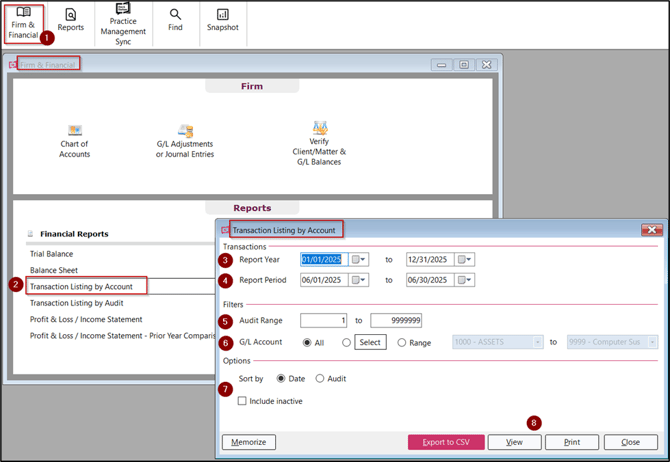
To print a Transaction Listing by Account:
- Click on Firm & Financial
- Under Financial Reports select Transaction Listing by Account
- Report Year -Select or enter the report year date range. Default selection is current financial report year.
- Report Period - Select or enter the start and end dates of the accounting period for the transactions to be reviewed.
- Audit Range - Enter audit number range to include on the report or leave the default to include all audit numbers.
- G/L Account - Click on Select to a single or multiple General Ledger accounts or click on Range to enter a range of General Ledger account to report on. Default is All to include all General Ledger accounts with transactions within the Report Period above.
- Options
- Sort by - Select whether to sort the transactions by Date or Audit. Default selection is Date.
- Include inactive - Select if inactive General Ledger accounts to be included.
8. Output method - Select View to display the report on your screen, Export to CSV to export the report or Print to print the report.
Tip:
- Select Memorize to add the report with the current selection to the memorized reports. Report can only be added once to the memorized reports group.
