![Dye & Durham Logo.png]](https://solutions.dyedurham.ca/hs-fs/hubfs/DD%20Direct%20V2/Dye%20%26%20Durham%20Logo.png?height=40&name=Dye%20%26%20Durham%20Logo.png)
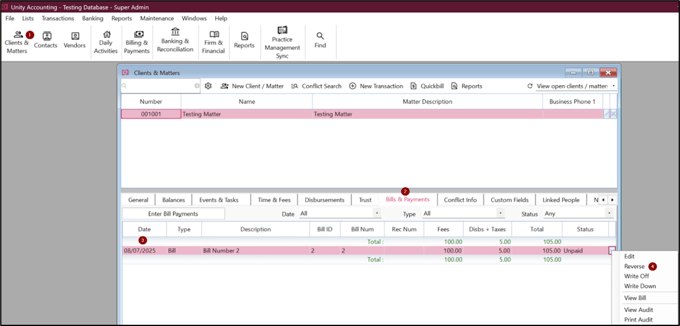
To reverse a bill:
- Click on Clients & Matters and select a client.
- Click on Bills & Payments tab.
- Select a bill you want to reverse .
- Make sure that the status of the bill is unpaid.
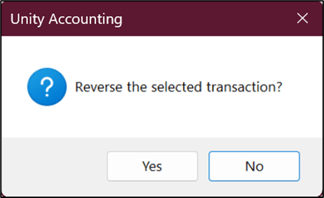
- Right click on the bill > Reverse or click the dropdown and select Reverse.
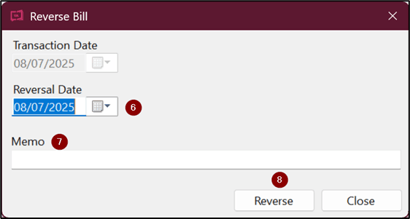
- Select an appropriate date of reversal.
- Enter the reason of reversal in the memo field.
- Click on Reverse.
A confirmation of the reversal will display.
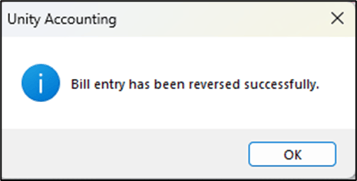
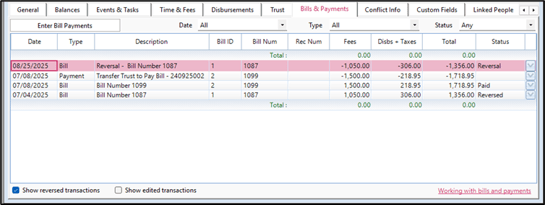
Once a bill has been reversed the original Bill will have a status of Reversed with an audit trail for transparency.
Review the Bills & Payments tab and ensure that the option to Show reversed transactions is selected to view the reversed transaction.
A reversal cannot be undone or reversed. However, the bill can simply be recreated with the same details as before to replace the reversed transaction.
Important:
- A bill can be reversed only if it is not paid.
- After a bill is reversed, the status of time and fees and disbursements related to that bill will be changed to unbilled.