![Dye & Durham Logo.png]](https://solutions.dyedurham.ca/hs-fs/hubfs/DD%20Direct%20V2/Dye%20%26%20Durham%20Logo.png?height=40&name=Dye%20%26%20Durham%20Logo.png)
This article covers reversing a General Receipt posted to a Client/Matter in error.
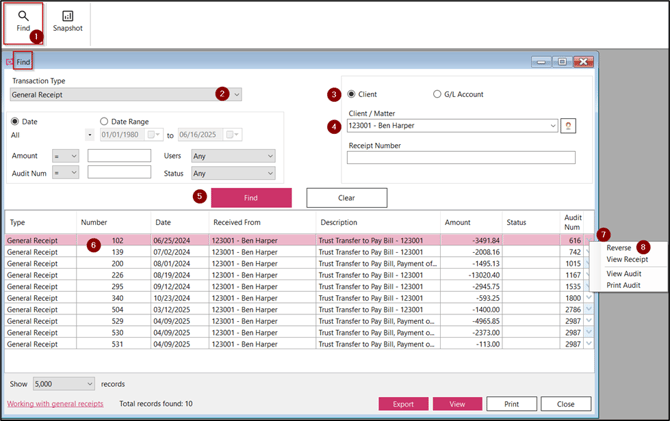
To Reverse a General Receipt posted to a Client/Matter Account
- Click on Find feature
- Transaction Type - Select General Receipt
- Client - Select Client
- Client / Matter - Select the Client / Matter the General Receipt was posted to
Note:
Alternatively, enter the Date Range, Amount, Receipt Number or Audit Number to assist in the Find5. Click on “Find”
6. Select the General Receipt to be reversed
7. Right click or click on 
8. Select Reverse
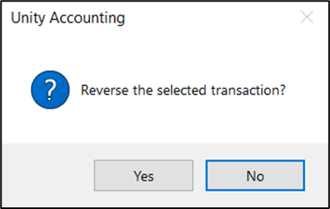
The above message will appear confirming the reversal, select Yes
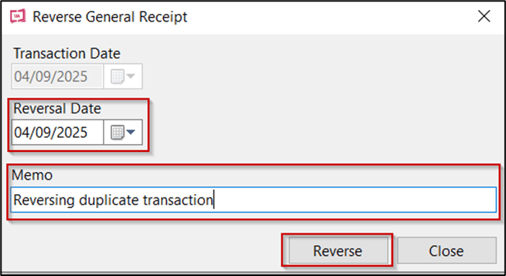
- Reversal Date - Select or enter the reversal date
- Memo - Enter a description supporting the reversal of the General Receipt
- Click on Reverse to complete the transaction
Note:
- A General Receipt which has been cleared/reconciled in the General Bank Reconciliation cannot be reversed. The below message will appear.
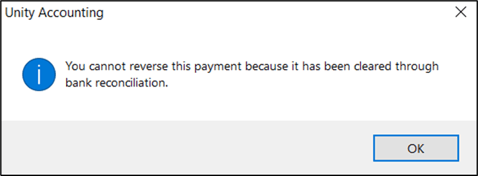
The General Receipt will need to be unticked/unreconciled in the Bank Reconciliation to continue with reversing the transaction. If the General Receipt was included in a Deposit, the Deposit will need to be reversed as well to continue with the reversal. Refer to article How to Undo A Deposit.
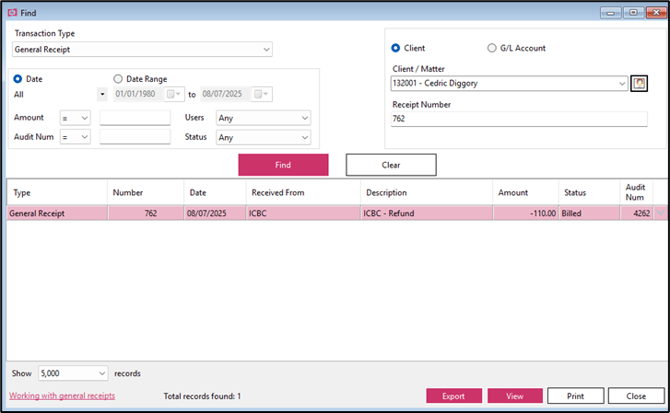
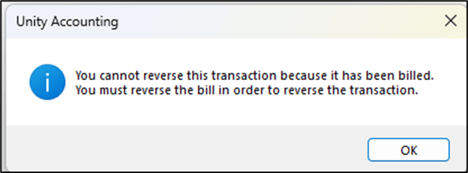
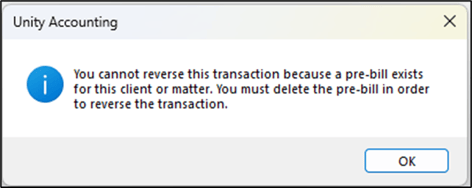
2. A General Receipt that has a status of Billed or Pre-Billed as a credit disbursement for a client/matter cannot be reversed. An error message will appear.