![Dye & Durham Logo.png]](https://solutions.dyedurham.ca/hs-fs/hubfs/DD%20Direct%20V2/Dye%20%26%20Durham%20Logo.png?height=40&name=Dye%20%26%20Durham%20Logo.png)
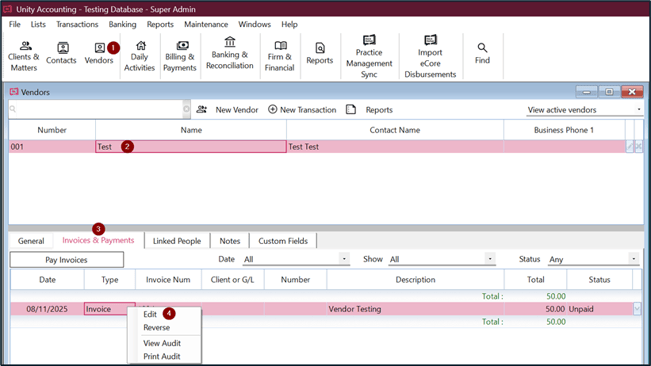
To reverse a vendor invoice:
- Click on Vendors.
- Select the vendor where the invoice is posted.
- Select the vendor invoice which needs to be reversed.
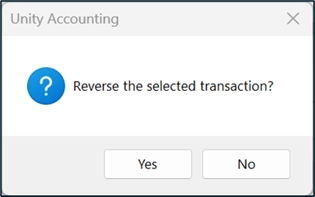
- Right click > Reverse > Yes or click the dropdown and select Reverse.
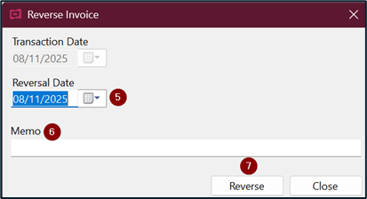
- Select or enter the date of reversal.
- Enter a reason of reversal.
- Click on Post and Close.
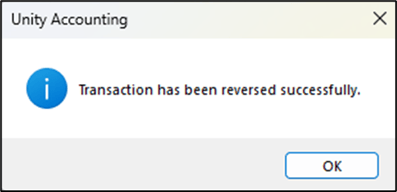
Once reversed a confirmation message will display.
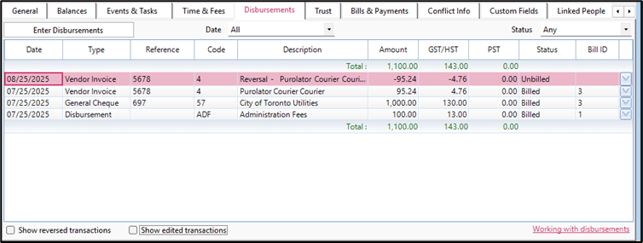
If a vendor invoice has been posted as a client disbursement, and the disbursement has been billed then a message will appear.
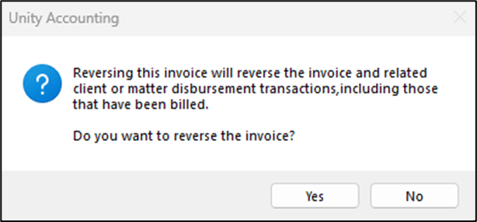
If Yes is selected then the client disbursement ledger will display a credit disbursement with a status of unbilled to reimburse the client for the previously charged disbursement.