![Dye & Durham Logo.png]](https://solutions.dyedurham.ca/hs-fs/hubfs/DD%20Direct%20V2/Dye%20%26%20Durham%20Logo.png?height=40&name=Dye%20%26%20Durham%20Logo.png)
In this article we will review how to enter the firm's payroll information into Unity Accounting under the following headings:
- Identifying how the firm's payroll is accomplished
- Entering Payroll details
- Entering Payroll remittance details
Identifying How the Firm's Payroll is Accomplished
As Unity Accounting does not include a payroll feature our customers currently outsource their payroll needs to alternative sources. The option that the firm uses will determine how payroll details will be entered into Unity Accounting.
Options
- Dayforce (previously Ceridian)
- ADP
- Canada Revenue payroll calculator
- Internal calculations/spreadsheets
Entering Payroll Details into Unity Accounting
Once a payroll provider has been chosen for the firm, we can now move forward to entering the payroll details into Unity Accounting appropriate to that provider.
Ceridian Payroll
- Ceridian deducts a single amount from the bank account that is inclusive of the wages, vacation pay, statutory holidays and remittance to CRA (this includes taxes deducted from the employees pay, the EI and CPP which is both the employer and employee portion.)
- Ceridian also includes an administrative fee and taxes (as appropriate to the respective province)
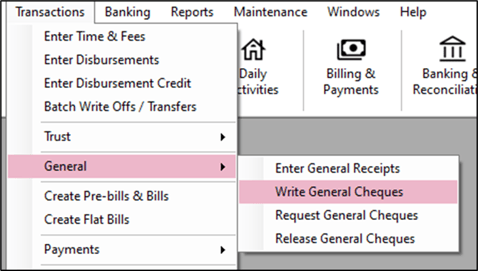
- To post to Unity Accounting use the following steps:
- Write General Cheque
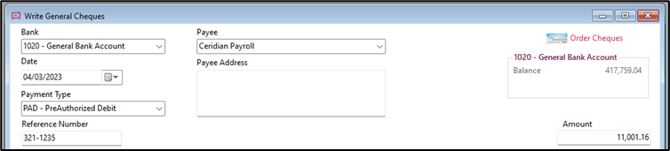
- Enter the details of the transaction.
- Bank
- Date
- Payment Type – PAD for Preauthorized Debit or EFT – Electronic Funds Transfer
- Reference Number – Dayforce’s payroll report will include a reference number
- Payee – Dayforce
- Amount – total being deducted from bank
- Enter the general ledger accounts
- For example, to capture the administration fee charged by Dayforce the charge and the associated GST/HST can be posted to a bookkeeping or accounting G/L
- Wages and remittances can be posted to a G/L Wages – Salaries etc.
ADP Payroll
- ADP is another well-known Canadian payroll provider and accommodates payroll in a similar fashion as Dayforce. As such, the payroll details can be posted in Unity Accounting using the same method.
Canada Revenue Payroll Calculator
- canada.ca includes a payroll calculator that is used by companies that choose not to outsource their payroll.
- As this option will generate a single “paycheque” per employee the user will create each individual cheque as required.
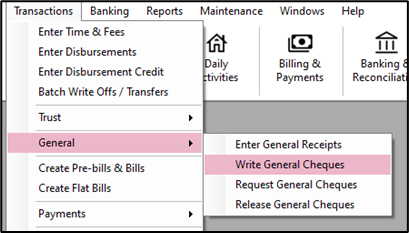
- Write General Cheque
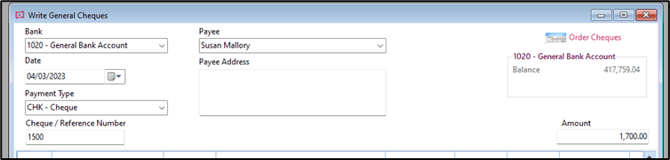
- Enter the details of the transaction.
- Bank
- Date
- Payment Type – CHK - Cheque
- Cheque number
- Payee – Employee
- Amount – Net wages being paid
- Enter the general ledger accounts

Tip:
- For assistance with payroll, we recommend requesting advice from an accountant. The general ledger accounts that are chosen to associate with payroll may include additional details related to Vacation Pay, Benefits, Sick Pay, Bonuses etc. that may be tracked to specific and individual general ledger accounts.
Internal Calculations/Spreadsheets
- If payroll is created using calculations/spreadsheets, which is used to create individual paycheques for each employee, the same method as mentioned for the Canada Revenue Payroll Calculator can be used.
Entering Payroll Remittance Details
If an outside payroll provider such as Dayforce and/or ADP that reports and remits the firm's payroll deductions on the user's behalf then this step is not required. If payroll is generated using an alternative such as Canada Revenue’s online calculator, the firm will be required to pay payroll remittances.
Options
- Create Vendor Invoice
- Create General Cheque
Create Vendor Invoice
For step-by-step instructions on how to create a vendor invoice please reference our article How to Enter a Vendor Invoice.
- Specifically with respect to the Vendor: Receiver General, the firm will use the general ledger related to the Source Deductions payable G/L when invoices are created. This will offset the source deductions that were posted when the general cheques were created to each employee for their payroll.
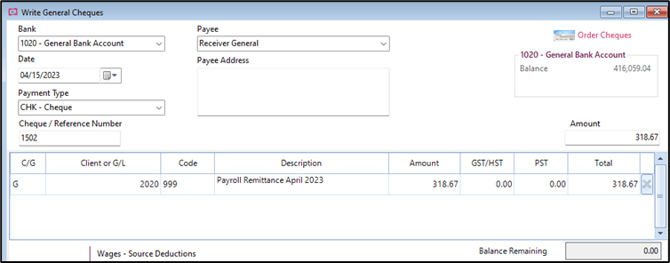
Create General Cheque
- Write General Cheque
- Enter the details of the transaction
- Bank
- Date
- Payment Type – CHK - Cheque
- Cheque number
- Payee – Receiver General
- Amount – Remittance outstanding
Tip:
- If remittances are paid online through the bank the payment type can be changed to EFT or PAD and enter the Cheque/Reference Number as the confirmation number provided by the bank when payment is approved.
Summary
The firm is now ready to enter payroll details to Unity Accounting, whether a single value provided by a Payroll Provider, or individual cheques to each employee and to the Receiver General. This will assist in accurately recording the firm's expenses, as well as support in the general bank reconciliation.